Every editor built on VS Code (VS Code itself, Cursor, Windsurf, Antigravity, Kiro) shares the same extension API and the same Source Control panel. That means one extension can add AI commit messages to all of them, with the provider and model you choose rather than the one bundled with the editor. This guide walks through that setup with GitMind, from install to first generated commit, and covers the settings that make the difference between a generic message and one that fits your repository.
What you need
- A VS Code-compatible editor. The steps are identical in VS Code, Cursor, Windsurf, Antigravity and Kiro.
- A Git repository open in the editor.
- Either an API key for a cloud provider (Gemini, OpenAI, Anthropic, Mistral, DeepSeek, Groq and others), a GitHub Copilot subscription (GitMind can reuse it), or a local model runner such as Ollama or LM Studio.
Step 1: Install the extension
Open the Extensions view (Ctrl/Cmd+Shift+X), search for GitMind or AI Commit Assistant, and install. Or from a terminal:
code --install-extension ShahabBahreiniJangjoo.ai-commit-assistantCursor, Windsurf and the other editors expose the same command under their own binary name (cursor --install-extension …, windsurf --install-extension …). Editors that use the Open VSX registry instead of the Microsoft marketplace find the same extension there; a .vsix is also published with each GitHub release for offline installs.
Step 2: Choose a provider
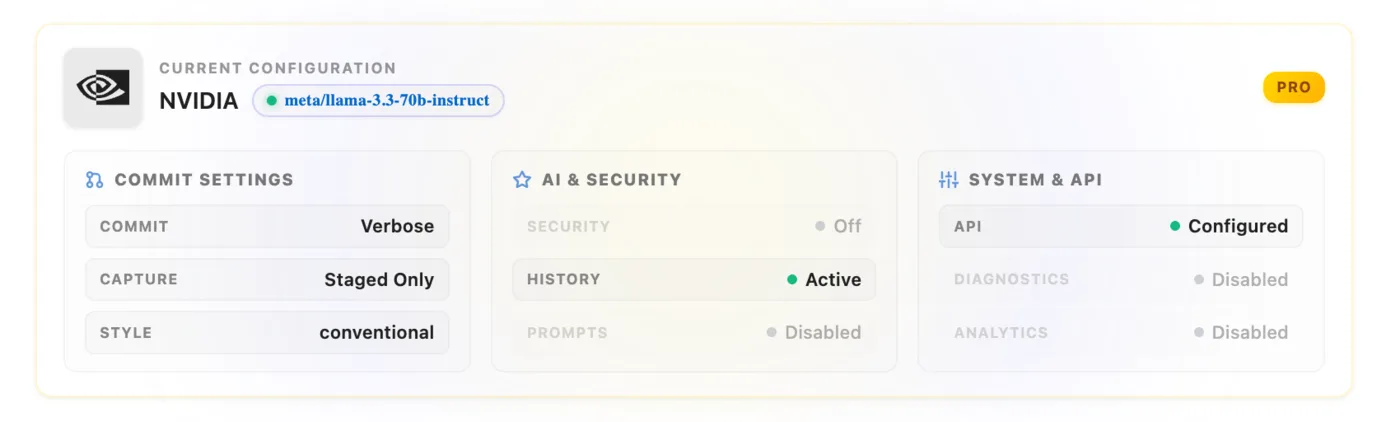
On first run GitMind opens an onboarding view; you can reopen it at any time with GitMind: Open Onboarding from the Command Palette (Ctrl/Cmd+Shift+P). Pick a provider, enter its API key if it needs one, and pick a model. The equivalent settings, if you prefer settings.json:
{
  "aiCommitAssistant.apiProvider": "gemini",
  "aiCommitAssistant.gemini.model": "gemini-2.5-flash"
}
A few things worth knowing before you choose:
- The diff goes to the provider you select. With a cloud provider, the selected context and prompt are sent to that provider's API. Nothing is routed through GitMind's servers. If the repository must not leave the machine, use Ollama or LM Studio.
- Small, fast models are fine for this. A commit message is a short summary of a bounded diff. Flash/mini-class models produce good results at a fraction of the cost of the largest models.
- Copilot reuse means you can generate through your existing GitHub Copilot subscription with no separate key.
GitMind: Check API Setup validates the key and model before you rely on them.
Step 3: Stage, generate, review, commit
- Stage the changes you want in the commit, in the Source Control panel or with
git add. GitMind reads the staged diff by default, so partial staging (git add -p) gives you partial, focused commits. - Click the GitMind icon in the Source Control title bar, press
Ctrl+Alt+G, or run GitMind: Generate AI Commit Message. - The draft appears in the commit message box. Read it. Edit it. It is a draft, and you know things the diff does not: the ticket, the constraint, the thing you tried first.
- Commit as usual.
The review step is the whole point. An AI-written message is only as good as the diff it saw; if the message says “update config” and you know it was “work around the provider's 429 limit”, add that sentence. Two seconds of editing turns an acceptable message into a useful one.
Step 4: Match your team's convention
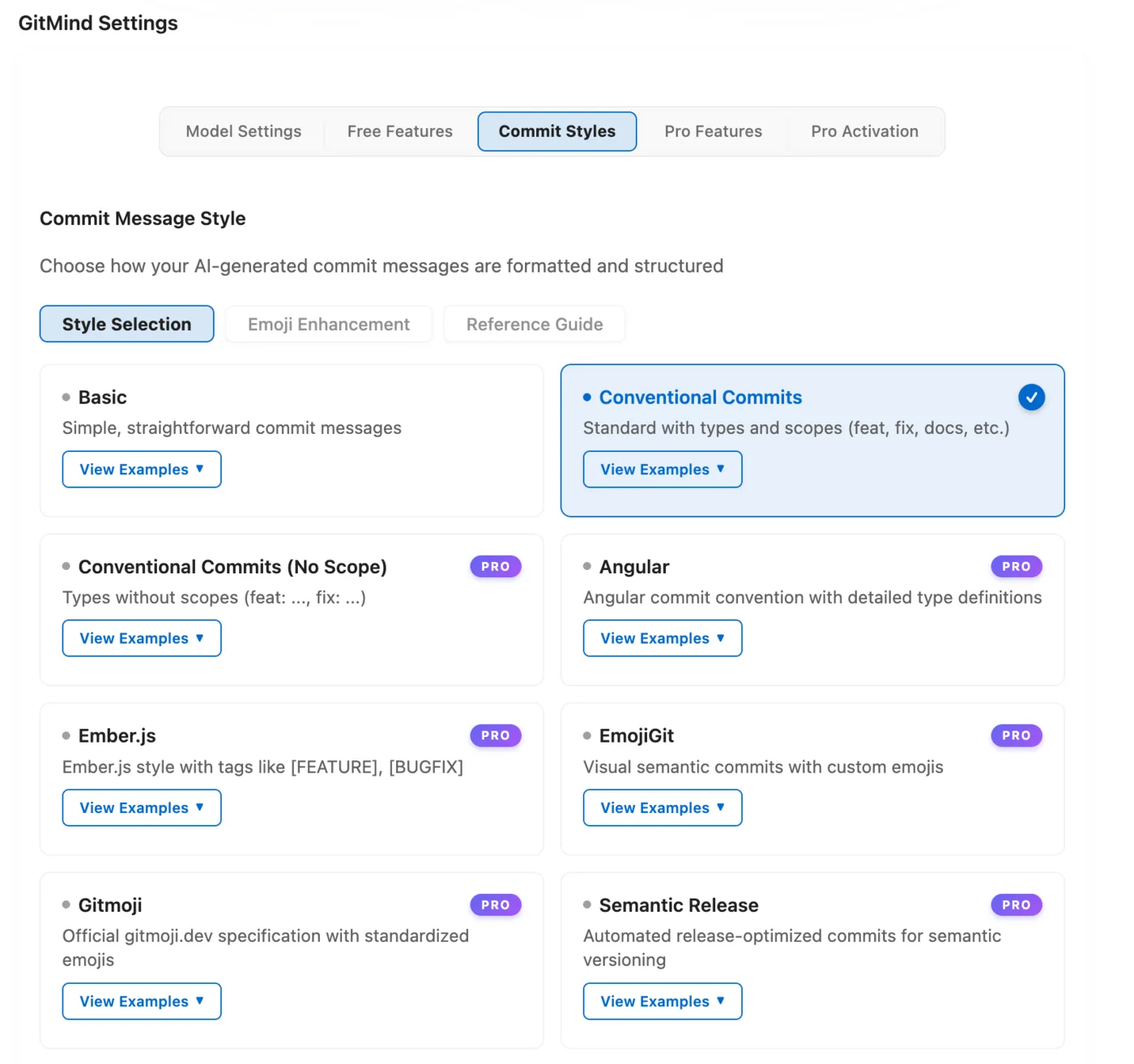
Out of the box GitMind writes a plain, well-formed message: imperative subject, blank line, short body. If your repository uses a convention, select it in the commit-style setting and generation follows it, whether that is Conventional Commits (feat(scope): …), Gitmoji, Angular, Karma, Semantic and others. The basic style is free; the professional styles are part of GitMind Pro, along with learning the convention automatically from your repository's existing history.
If you are not sure which convention a repository uses, git log --oneline -20 answers it. See How to write good Git commit messages for what the conventions are and why they matter.
Editor-specific notes
| Editor | Notes |
|---|---|
| VS Code | Everything above applies as written. Pro adds encrypted API-key storage via the editor's SecretStorage instead of plaintext settings. |
| Cursor | Cursor ships its own commit-message generator tied to its bundled models. GitMind sits alongside it; use GitMind when you want a specific provider, a local model, or a chosen convention. |
| Windsurf | Same as Cursor: the built-in generator uses Windsurf's models; GitMind gives you provider and convention control. |
| Antigravity, Kiro | Install from Open VSX or the .vsix if the Microsoft marketplace is not available in the editor. |
When generation fails
- Nothing staged. GitMind needs a staged diff. Stage something and retry.
- Invalid key or model. Run GitMind: Check API Setup; it reports exactly which part of the configuration is wrong.
- Rate limited (HTTP 429). Free-tier cloud providers rate-limit aggressively. Wait, switch model, or (with Pro) configure automatic retry and fallback to a second provider so the flow does not stop.
- Very large diff. Split the commit. A message that summarises 4,000 changed lines will not be a good message regardless of the model.
Doing this with GitMind
GitMind is free for the core workflow above: 22 built-in providers plus Copilot reuse and local Ollama or LM Studio, unlimited generation, and the basic commit style. The one-time Pro license adds the professional commit styles, repository-history learning, encrypted key storage, automatic retry and fallback, and Custom API endpoints. The full comparison is on the features page.